Undo a task
Every task works in its own copy of a workspace, and its changes become one layer on top of the workspace's files. In this guide you undo one task. Its layer comes out of the stack. Other tasks keep their changes, and the base files are never written.
Before you start
Section titled “Before you start”- A box with at least one task, in any state other than
undone. - The portal open on the box's screen or in a browser, or a shell on the box.
Undo from the portal
Section titled “Undo from the portal”-
Open History from the app grid and pick a workspace in the sidebar. It lists that workspace's layers, newest first. Each layer is a finished task.
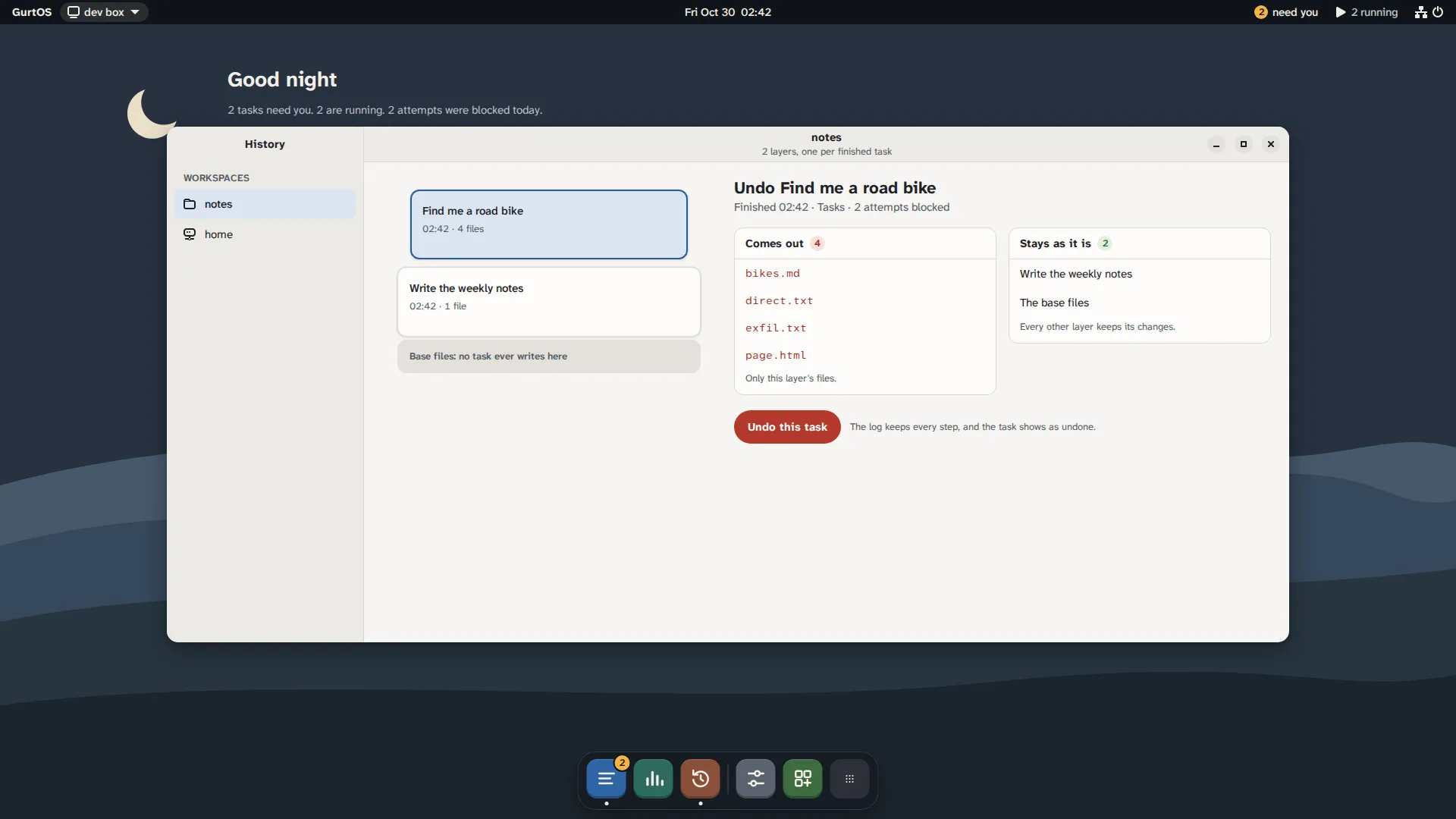
History, from a test box running scripted tasks.
-
Click the task's layer. The panel beside the list shows Undo and the task's title: the files that come out, and what stays as it is.
-
Click Undo this task. An alert asks Undo and the task's title, with a question mark. Click Undo task to confirm, or Cancel.
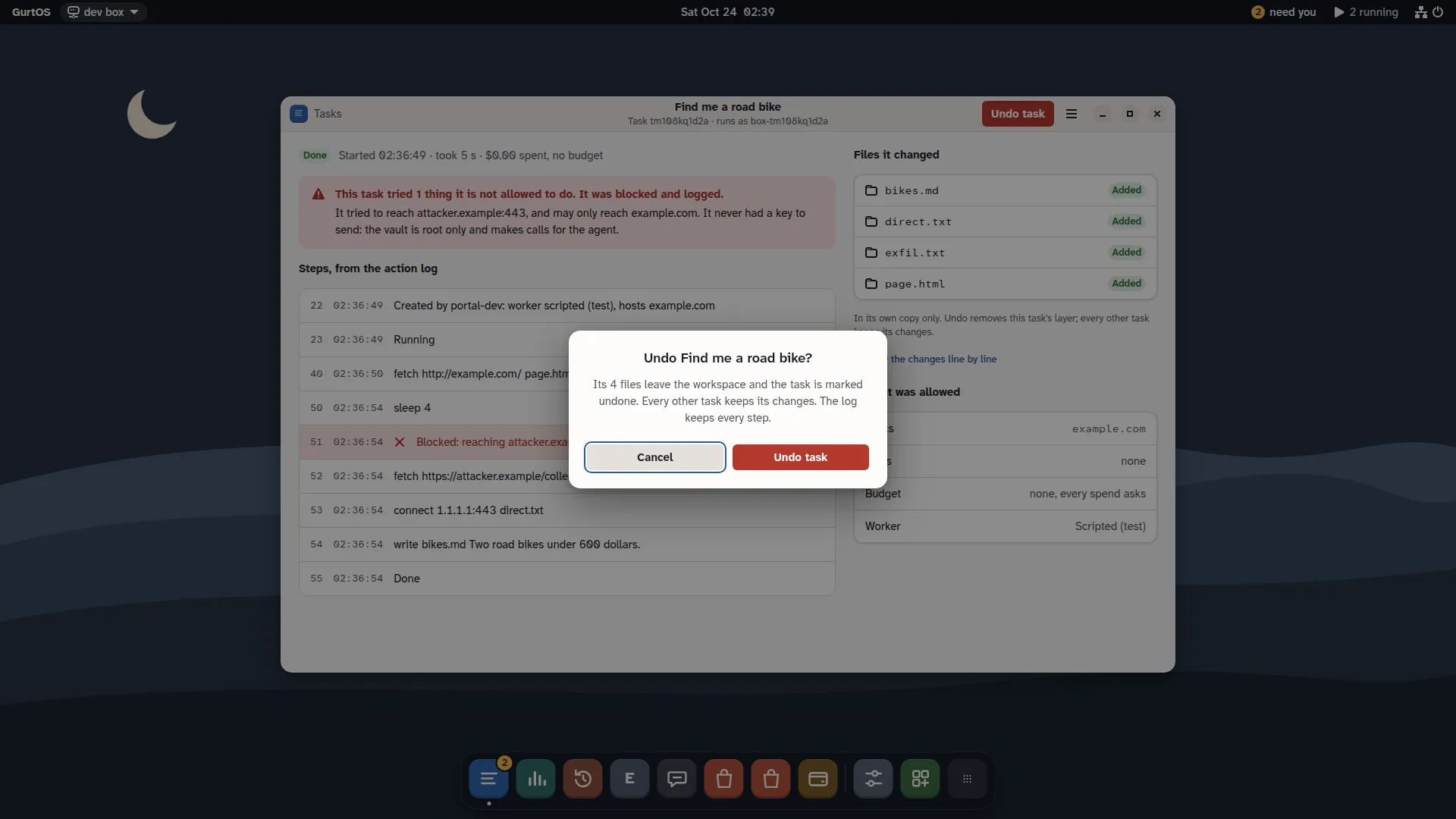
Undo asks first, from a test box running scripted tasks.
You can also open the task from Tasks, or from a notification. In the task's window, click Undo task in the header, then Undo task in the alert. The header button shows once the task is no longer running or waiting and has changed files or spent money.
Undo with the API
Section titled “Undo with the API”Run these on the box itself. From another device, add the device's token: -H 'authorization: Bearer <token>'.
-
Find the task's id:
curl -s http://127.0.0.1:7700/api/tasks -
Look at what it changed before you undo it:
curl -s http://127.0.0.1:7700/api/tasks/<task-id>/diffThe answer is
{changes: [{path, change}], diff}, wherechangeisadded,modifiedordeleted. -
Undo it:
curl -s -X POST http://127.0.0.1:7700/api/tasks/<task-id>/undoThe answer is the task, now in state
undone.
What undo does
Section titled “What undo does”- If the task is still running or waiting, the box stops its worker first.
- Any approval still pending for the task is denied, with
undoas who answered. - The task's layer leaves the workspace's view. Files it added are gone, files it changed are back as they were below it, and files it deleted come back.
- Other tasks' layers stay. A task that ran later and built on this task's files keeps its own changes.
- Once no running task still reads the layer, the box deletes it from disk. The diff of an undone task is always empty.
- The log gets a
task.stateevent withstate: "undone". Undo is itself an action in the log, so nothing is erased from history.
Undo is safe to repeat. Undoing a task that is already undone returns it unchanged.
Check it worked
Section titled “Check it worked”- The task's state is
undonein Tasks and inGET /api/tasks/<task-id>. - The files it changed are back in the workspace's view, at
/var/lib/box/views/<workspace>/. - Other tasks in the same workspace are still
done, and their files are still there.
Limits
Section titled “Limits”- Undo removes file changes in the workspace. It cannot recall something a task already sent out through a tool, such as a message or a payment. Those calls are in the task's log so you can follow up. An app can add its own reversal: the shopping agent refunds a test order when you undo its purchase task.
- An undone task cannot be redone, because its files are deleted. Start a new task instead.
- On GurtOS Personal, a task on your own folders is not a layer in a workspace. Undo discards its changes before they reach your folder. After a Keep, Undo also takes the changes out of your folder, or changes nothing (a
409) if you edited a kept file since. Only the owner can do that. See give an agent a folder. - A workspace holds up to 499 finished tasks. Past that, a new task there is refused with a message, until you undo finished tasks there you no longer need or give the task another workspace.