Install GurtOS Personal
GurtOS Personal is GurtOS on your own laptop or desktop. You use it as a normal computer, with Ubuntu's GNOME desktop
and your own account with sudo. Agents work beside you as separate users without sudo, on copies of your
folders, and nothing in your folders changes until you choose Keep.
It installs from its own ISO, like GurtOS Server, and updates the same way: the whole system at once, with an automatic rollback if the new system is not healthy.
Requirements
Section titled “Requirements”| Minimum | Recommended | |
|---|---|---|
| CPU | x86_64 or arm64 | 4 cores |
| Memory | 4 GB | 8 GB or more. The desktop needs room, and each task may use up to 2 GB. |
| Disk | 29 GB | 48 GB. The two system slots take 24 GB. |
| Firmware | BIOS or UEFI on x86_64, UEFI on arm64, with Secure Boot off | |
| Network | Wired or Wi-Fi, with internet on first start: the computer downloads Factory's Droid CLI (about 300 MB) then, and the voice model for Talk to your computer |
The installer refuses a disk smaller than 29 GB. The published Personal arm64 ISO was installed in an emulated arm64 VM, started healthy and survived a power cut; it has not been tried on a Mac yet.
Get the ISO
Section titled “Get the ISO”Download gurtos-personal-x86_64.iso (Intel or AMD, 2.00 GB), or gurtos-personal-arm64.iso (Apple silicon in UTM
or Parallels, 1.99 GB), from the Download page and check its checksum. Sizes are for the v0.2.0-preview
release.
Or build it from the source on an Ubuntu 24.04 build machine where you have root:
BUILD_SHELL='ssh my-build-vm' image/build personal # gurtos-personal-x86_64.isoBUILD_SHELL='ssh my-build-vm' image/build personal arm64 # gurtos-personal-arm64.isoThe build leaves gurtos-personal-<arch>.iso and its update file gurtos-personal-<arch>.sqfs (with .sha256 and
.sig) in /var/lib/box-image/out/ on the build machine. With BOX_SSH_KEY it makes a debug build named with
-debug.
Install
Section titled “Install”- Write the ISO to a USB stick, or attach it to a virtual machine, and start from it. The steps are the same as for GurtOS Server: Secure Boot off, then start from the disc.
- The disc's menu says GurtOS Personal and waits 5 seconds, then installs. Answer the installer's questions if it
asks any: a number to pick a disk when there are several, and
erasefor a disk with data or a USB disk. The installer's screen says it takes about 2 minutes. - The machine restarts into GNOME's own first-boot setup: language, keyboard, time zone, your name and a password.
The account it makes is an administrator, so it is in the
sudogroup. - As soon as that account exists, GurtOS makes it the box's owner. Only the owner can hand folders to agents, keep their changes and change settings.
- Log in. After GNOME's welcome, GurtOS Setup opens. It has six steps: Welcome, AI models, Folders, Permissions, Pair a phone and Done. The first Setup turns the Find app on and every other app off. You turn on more in GurtOS Settings, then Apps. GurtOS is in the dock, and its indicator is in the top bar.
Add your model key
Section titled “Add your model key”Agents need one model key: an Anthropic API key from console.anthropic.com, or a Factory API key from app.factory.ai. Paste it at Setup's AI models step and press Enter. GurtOS checks an Anthropic key with one call to Anthropic and says if it was refused. To add or replace a key later, choose GurtOS Settings in the top-bar menu, then Agents (the model key) or Accounts & Keys (every key). The key never shows on screen again, and agents never see it. Apps are optional and off until you turn them on in Apps, and the apps that need a key say which.
If you start a task before adding a key, it fails at once, and a notification asks you to add a model key in Settings.
Use it
Section titled “Use it”Right-click a folder in Files and choose New Agent Task…. Describe the job and set a budget. The agent works on a copy of the folder as its own user.
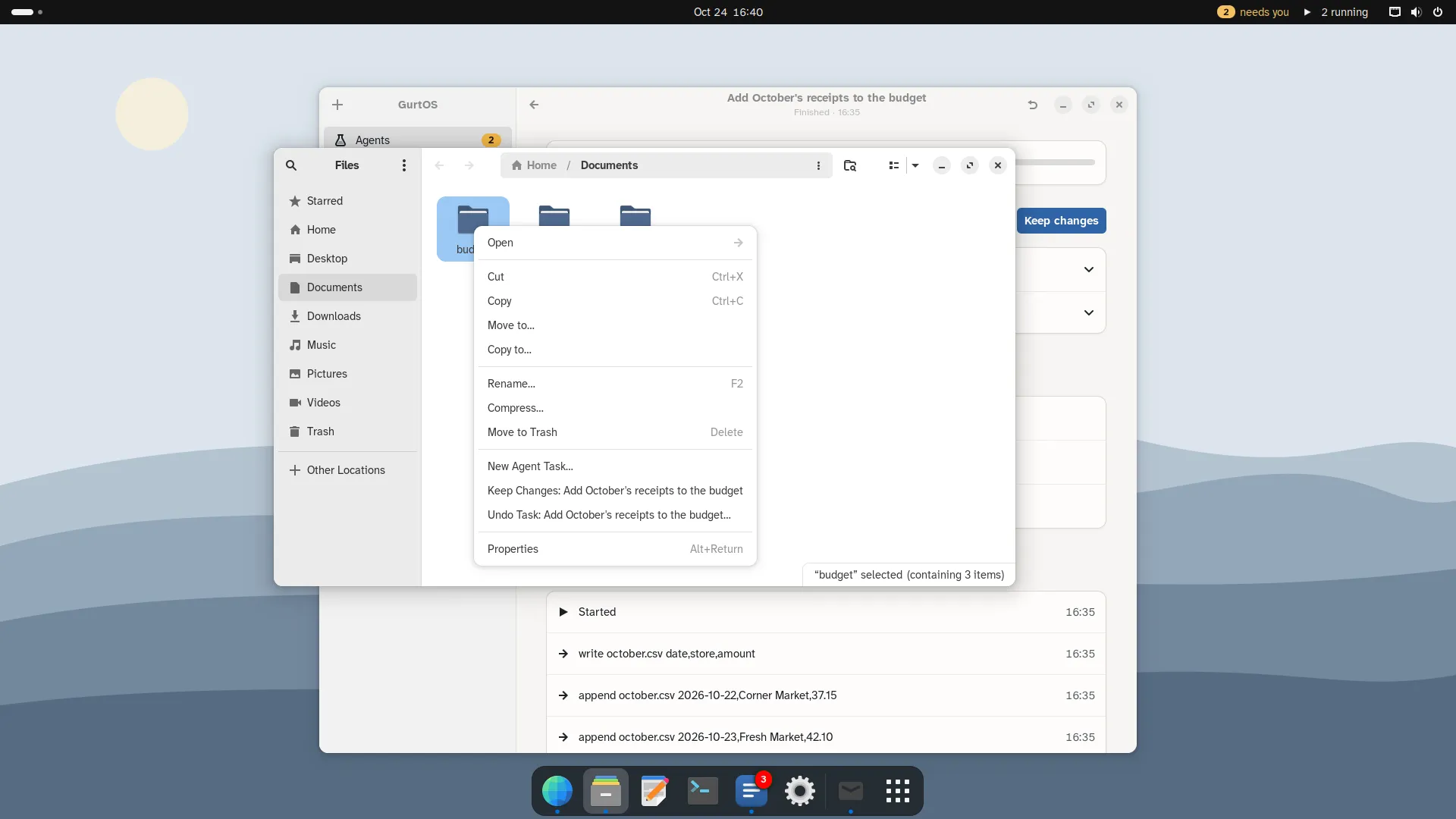
New Agent Task in Files. Keep Changes and Undo Task appear while a task's changes wait for you.
Requests for your OK arrive as notifications with Deny and Approve, and wait under Needs you in the GurtOS app. The log records your answer as
desktop:<your user name>.
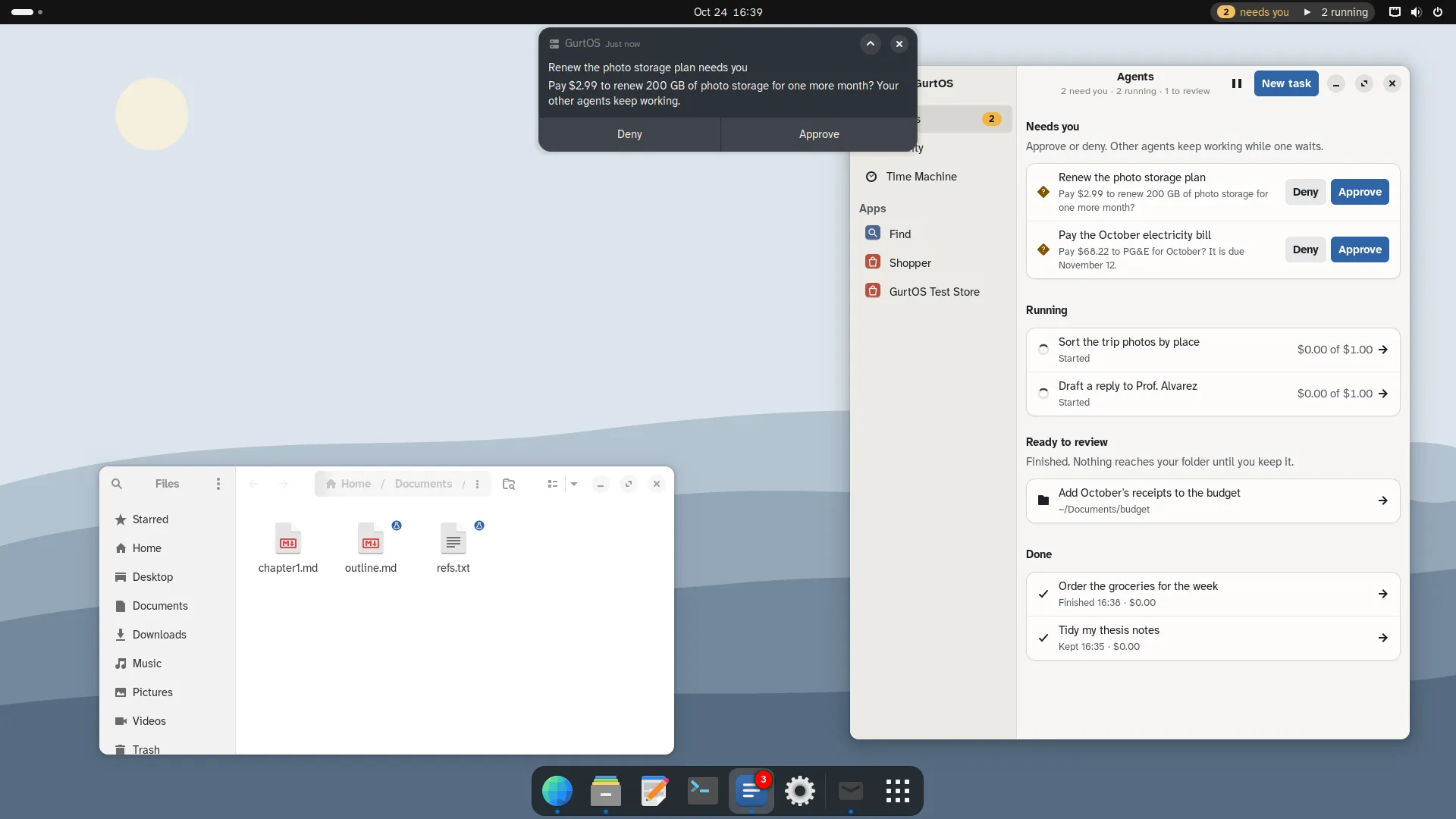
A request as a notification, and both requests under Needs you in the GurtOS app. Amounts are test money.
When the task is done, it waits under Ready to review. Its page shows what changed, line by line, and what the task could reach. Keep changes writes the changes into your folder; Undo task throws them away. Your folder is untouched until you choose.
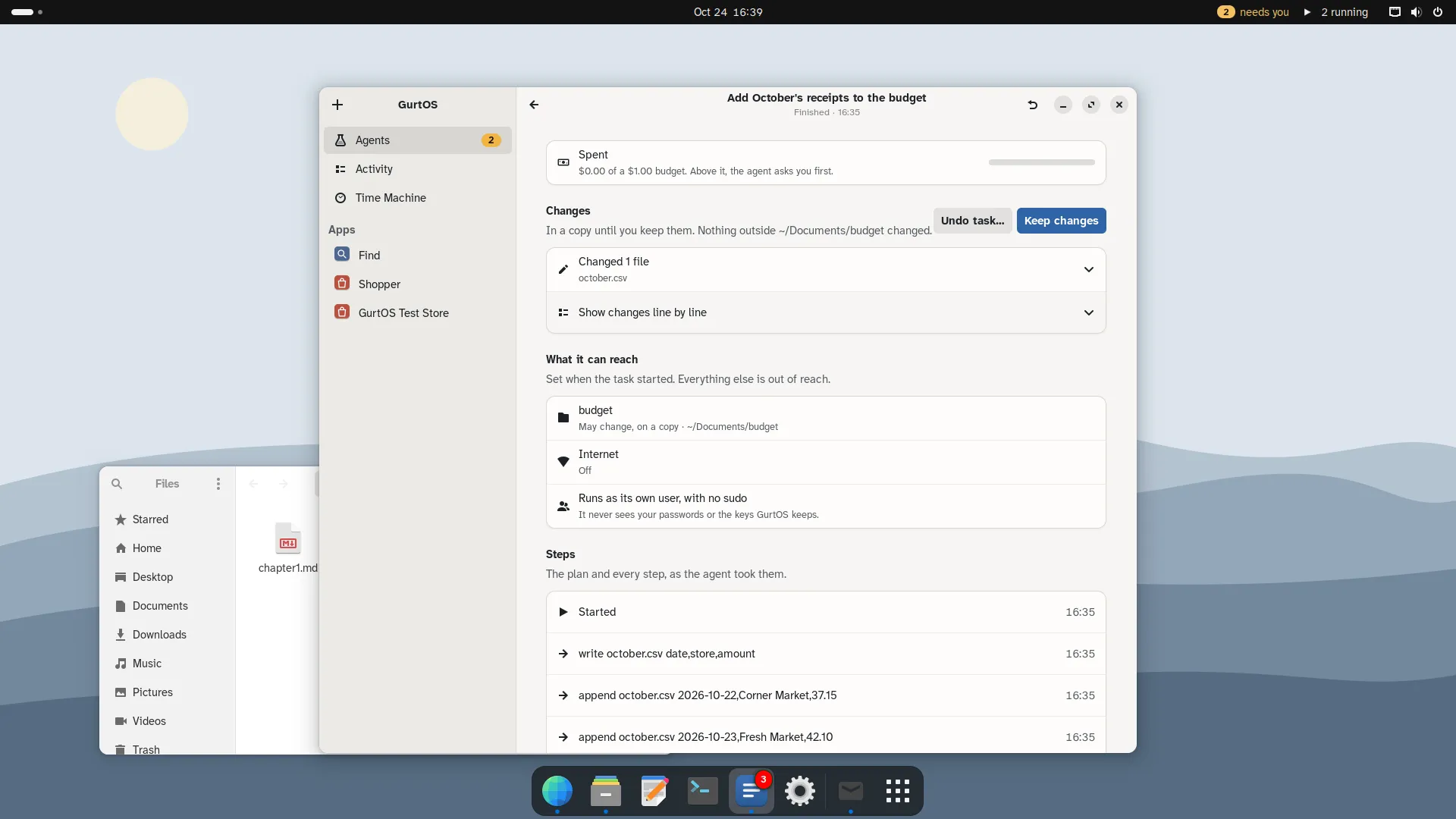
A finished task on its page in the GurtOS app.
See Give an agent a folder, then keep or undo for the details, including undoing a Keep.
What updates keep
Section titled “What updates keep”GurtOS Personal updates the whole system, like Server, and rolls back by itself if the new system is not healthy. See System updates.
An update keeps your files, your account and its sudo membership, other people's accounts, Wi-Fi and network
connections, Bluetooth pairings, time zone, language, the computer's name and login settings.
Software you install yourself with apt, and other changes outside your home folder and those settings, are gone
after the next system update, because the update replaces the whole system. Ubuntu's Software Updater is still
installed and can update the running system, but the next GurtOS update replaces that too.
What is not finished
Section titled “What is not finished”- Phones. The box listens on every address and tells a phone its own address when it starts, so a phone on the same
network can pair. A laptop that moves to another network keeps showing the old address in the pairing code until
the box restarts (
sudo systemctl restart box.service). GurtOS Setup's Pair a phone step shows a code only when a phone can reach the computer. See Approve from your phone. - Testing. Personal x86_64 installs, comes up healthy and survives a power cut in a virtual machine. An arm64 test disc was installed in a VM on a Mac. Neither has run on a real laptop.