Approve from your phone
When a task asks for your OK, the request waits until someone answers. In this guide you give a phone a route to the box, pair it, and approve a request from it. Each phone gets its own device token, so the action log records which phone said yes, and you can remove one phone without touching the others.
From anywhere but the box's own machine, the API answers only requests that carry a paired device's token. Without
one it answers 401 and nothing is read, started, approved or undone. A laptop's browser at the box's address needs
pairing too, the same way as a phone.
Before you start
Section titled “Before you start”- A running box. See Install GurtOS Server or Install on Ubuntu.
- A phone with a browser, on the same private network as the box (your home network, or a VPN such as Tailscale).
- On the Ubuntu install, a shell on the box, to change its listen address.
On GurtOS Server and GurtOS Personal from the ISO
Section titled “On GurtOS Server and GurtOS Personal from the ISO”The ISO install does steps 1 and 2 for you. At each start the box listens on every address and sets BOX_URL to
its own address on your network, and its firewall lets port 7700 in only from private networks: 10.0.0.0/8,
172.16.0.0/12, 192.168.0.0/16, Tailscale's 100.64.0.0/10, link-local addresses and IPv6 unique local
addresses. Never from the public internet. Go to step 3.
On GurtOS Personal, BOX_URL is worked out when the box starts, so after a laptop moves to another network the QR
code shows the old address until the next restart.
A cloud instance with only a public address is therefore out of reach from your phone. Put the box and the phone on a private network such as Tailscale, or use the provider's console.
-
Give the phone a route to the box (Ubuntu install). The box's API listens on
127.0.0.1only. Pick one way in:- A private network or VPN that the phone and the box are both on, such as WireGuard or Tailscale. Then set the box to listen on its address there (step 2).
- A reverse proxy you run on the box that serves HTTPS and forwards to
127.0.0.1:7700. Requests through it carry forwarding headers, so the box treats them as remote and asks for a token, even though they arrive on loopback.
-
Set the listen address and the box's own address if you chose a private network. Add both to the box's service and restart it:
sudo systemctl edit box.service[Service]Environment=BOX_LISTEN=192.0.2.10Environment=BOX_URL=http://192.0.2.10:7700sudo systemctl restart box.serviceUse the box's own address on that network.
0.0.0.0listens on every interface, including networks you may not trust.BOX_URLis the address the phone will use; with it, the pairing code comes with a QR code that opens on the phone. -
Show a pairing code. On the box's own screen, open Settings, Devices. Under Pair a phone it shows a one-time code that works once, for 5 minutes, and a QR code when
BOX_URLis set. Only the box itself, or a phone paired as the owner, can make a pairing code. The QR code opens the box's own pairing page, so the phone must be on the same network.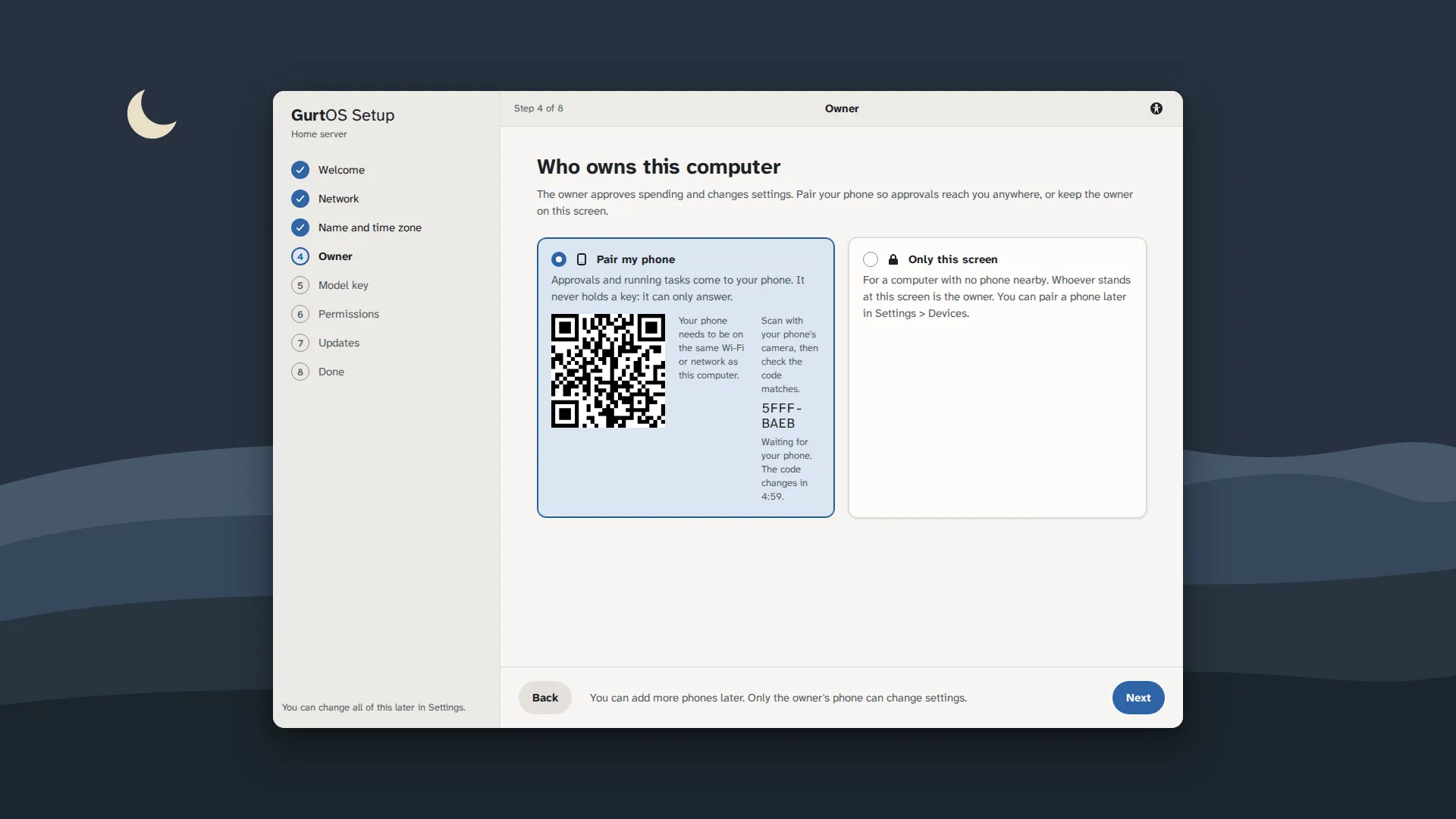
Pairing the owner's phone during setup. You can pair more phones later in Settings, Devices.
-
Pair the phone. Scan the QR code with the phone's camera, or open
http://192.0.2.10:7700/pair#<code>on it. Check that the phone shows the same code as the box's screen, give the phone a name under Name this phone, and tap Pair this phone. The phone keeps its device token in the browser's storage. -
Approve a request. When a task asks for an OK, the phone shows it with Approve and Deny. The first answer wins, from any device. The phone sends its device token with the answer, so the log records the phone's name. Anything else the phone puts in the answer's
byfield is ignored.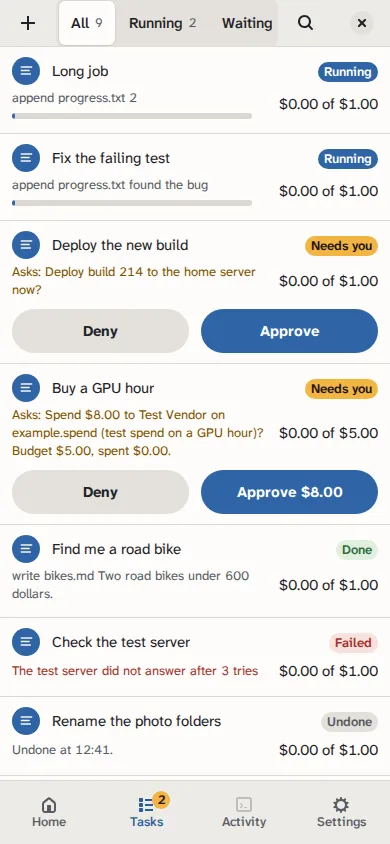
The portal on a phone, from a test box running scripted tasks. Amounts are test money.
Pair with the API
Section titled “Pair with the API”Steps 3 and 4 also work from a shell on the box, for example over SSH:
curl -s -X POST http://127.0.0.1:7700/api/pair/start{"code":"3f9a1c2e","url":"https://app.gurtos.com/pair#code=3f9a1c2e&lan=192.0.2.10%3A7700&n=gurt-bf07fe","boxUrl":"http://192.0.2.10:7700/pair#3f9a1c2e","expiresAt":"2026-10-24T07:05:00.000Z","box":{"id":"gurt-bf07fe","name":"gurt-bf07fe"}}Open boxUrl on the phone: here http://192.0.2.10:7700/pair#3f9a1c2e. url is for the hosted web app, which
reaches the box only when it has an https address through a relay. Everything after # stays on the phone and is
never sent to a server. A program can redeem the code itself with
POST /api/pair {"code": "3f9a1c2e", "name": "Kitchen tablet"}, which returns the device token once. It then sends
Authorization: Bearer <token> with every request, or ?access_token=<token> for the log stream, because a
browser's EventSource cannot set headers.
Pair a phone as the owner
Section titled “Pair a phone as the owner”A normal paired phone can read, start tasks and answer approvals. Some actions belong to the owner only: making pairing codes, listing and removing devices, setup, settings, the vault, turning apps on and off, and on GurtOS Personal, handing out folders and Keep. Those need the box's own screen, or a phone paired as the owner.
To pair one, ask for an owner code from the box itself:
curl -s -X POST http://127.0.0.1:7700/api/pair/start \ -H 'content-type: application/json' -d '{"owner": true}'Redeem it on the phone as in step 4. In Settings, Devices, the switch It is the owner's phone makes the code an owner code.
Check it worked
Section titled “Check it worked”List paired devices on the box:
curl -s http://127.0.0.1:7700/api/devicesYou see one entry per phone, with its id, name and pairedAt, and owner: true for an owner device. Tokens are never
listed. After you approve something from the phone, the task's log has an approval.answered event whose by is
the phone's name.
Remove a phone
Section titled “Remove a phone”In Settings, choose Remove next to the phone. Or use the API:
curl -s -X DELETE http://127.0.0.1:7700/api/devices/<device-id>That phone's token stops working at once. Its next request gets 401, and the portal on the phone forgets the
token. Pair it again to get a new one.
Limits
Section titled “Limits”- On the Ubuntu install, the API listens on
127.0.0.1until you setBOX_LISTEN. GurtOS Server and GurtOS Personal from the ISO open it to private networks only, so a box with only a public address needs a VPN such as Tailscale. - SpacetimeDB listens on
127.0.0.1only, because it has no login. A phone follows the box's log stream over the API instead. You can open SpacetimeDB to a network withSTDB_LISTEN=<address>in/etc/box/stdb.env, but anyone who reaches it can then read every task and answer approvals. - Push notifications need remote access through a relay. Without it, a request shows when the app is open on the phone.
- Wrong pairing codes are limited: after 5 wrong codes in a minute from one address, or 60 in a minute from
everyone, the box answers
429until the minute has passed.