Reach your box from anywhere
A box answers on its own network: a phone on the same Wi-Fi can pair with it and approve its requests (see Approve from your phone). To reach it from somewhere else, pick one of two ways.
| Compare | A private network | A relay you run |
|---|---|---|
| What it is | Tailscale, WireGuard or another VPN that the phone and the box's network share | Your own copy of the GurtOS relay, on a small server with a public address |
| The box's address | Its address on that network, over plain HTTP inside the VPN's encryption | https://<name>.<your relay's domain>, with its own certificate |
| Push notifications | No. A request shows when the app is open on the phone | Yes, through the relay's push gateway |
| Setup | A few minutes | A server, a domain and about an hour. See Run your own relay |
A private network is the simple choice and needs nothing from GurtOS. A relay adds an https address and push notifications.
Over a private network
Section titled “Over a private network”Every request from off the box still needs a paired device's token. A private network only gives the phone a route.
GurtOS Server
Section titled “GurtOS Server”GurtOS Server listens on every address, and its firewall lets port 7700 in from private networks only, including
Tailscale's 100.64.0.0/10. It has no shell for you to install a VPN on, so put the VPN on another machine on the
same network:
- On a computer that stays on at home, install Tailscale and make it a
subnet router for your home network, for example
192.0.2.0/24. - Approve the route in the Tailscale admin console, and install Tailscale on your phone with the same account.
- Pair the phone as on the home network. The pairing QR code opens the box's own address, such as
http://192.0.2.10:7700, which the phone now reaches from anywhere through the subnet router.
GurtOS Personal and the Ubuntu install
Section titled “GurtOS Personal and the Ubuntu install”You have sudo on these, so you can put the box itself on the private network:
- Install Tailscale on the computer and on your phone, and sign in to both with the same account.
- On GurtOS Personal the box already listens on every address and allows Tailscale's addresses. On the Ubuntu
install, set
BOX_LISTENandBOX_URLto the computer's Tailscale address: see step 2 of Approve from your phone. - Show a pairing code on the computer, then open
http://<Tailscale address>:7700/pair#<code>on the phone. On GurtOS Personal the QR code holds the computer's home address, so type the Tailscale one instead when you are away.
Through a relay you run
Section titled “Through a relay you run”A relay gives the box an address such as https://rosa.box.example.com with no port forwarding on your router, and
forwards push notifications to phones. It is off until the owner turns it on.
How it works
Section titled “How it works”- The box opens one outbound tunnel to the relay. Nothing is forwarded to your box from the internet.
- The box gets its own Let's Encrypt certificate for
<name>.<relay domain>. TLS ends on the box, so the relay passes encrypted bytes it cannot read. See what the relay can and cannot see. - A request through that address looks like any other off-box request: it needs a paired device's token. The address makes your box reachable. It does not let anyone in.
Before you start
Section titled “Before you start”- A relay. Set one up with Run your own relay, push gateway and web app.
- You are the box's owner: use the box's own screen, or a phone paired as the owner.
- Outbound TCP port 7000 open from the box, as well as 80 and 443. A network that allows only 80 and 443 out blocks the tunnel.
Point the box at your relay
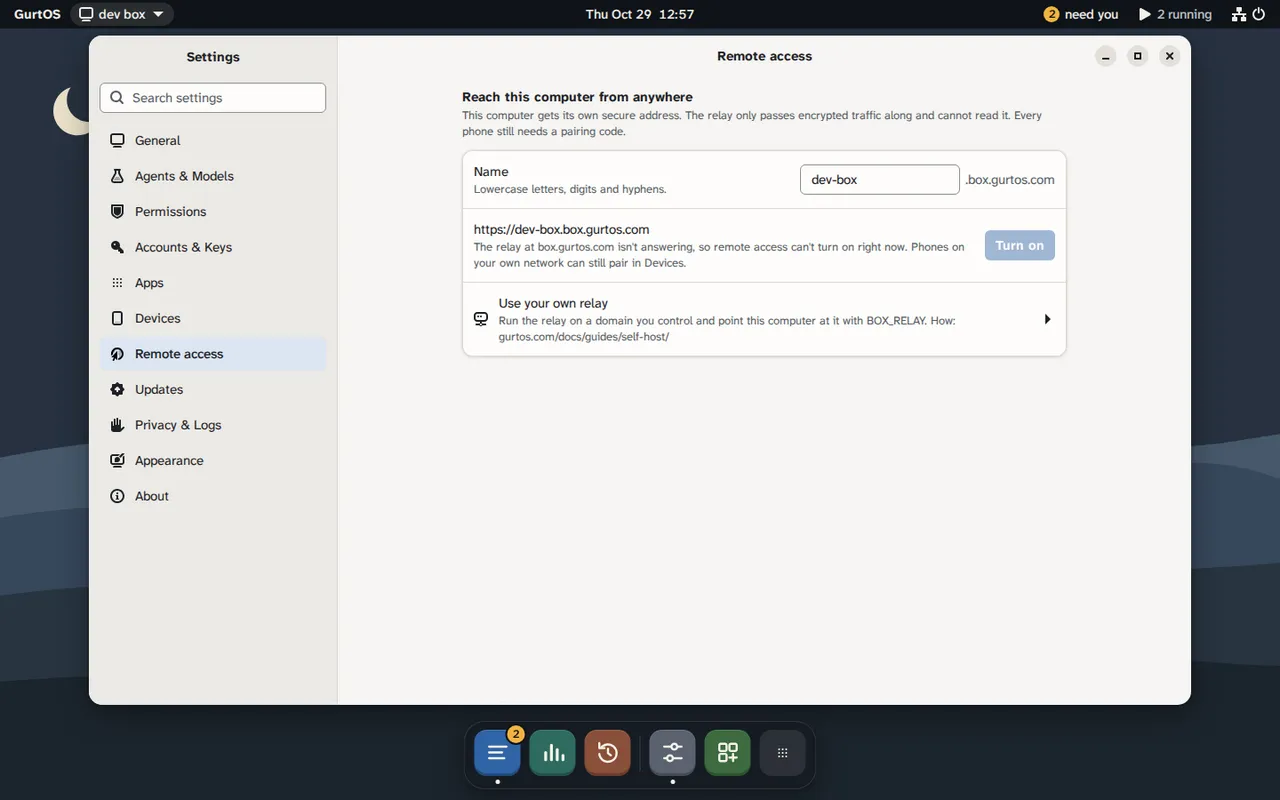
Section titled “Point the box at your relay”While remote access is off, open Settings, Remote access on the box's screen or an owner's phone, type your relay's address under Relay and choose Save. Or, from the box itself or with an owner device's token:
curl -s -X PUT http://127.0.0.1:7700/api/remote/relay \ -H 'content-type: application/json' -d '{"url": "https://box.example.com"}'The box checks that the address is https, is a public host name and resolves to a public address, then saves it.
{"url": null} goes back to the default. GET /api/remote/relay shows the relay in use. Setting BOX_RELAY in the
box's service does the same; see Run your own relay.
Turn it on
Section titled “Turn it on”- On the box's own screen, open Settings, then Remote access. On GurtOS Personal, open GurtOS Settings and find Reach this computer from anywhere.
- Choose a name. Names are lowercase letters, digits and hyphens, 3 to 30 characters, with no hyphen at the start, the end or doubled. The relay reserves some names and tells you if a name is taken.
- Choose Turn on. The state goes from Getting a certificate to Connected in up to a minute.
The box's address is now https://<name>.<relay domain>. Phones paired from now on use this address.
To turn it off, choose Turn off in the same place. The box releases its name and closes the tunnel. Turning it off and on again also issues a new relay secret.
The web app and notifications
Section titled “The web app and notifications”Every box serves the GurtOS web app at its own address. With a relay, the box's pairing QR codes open the web app
named by BOX_APP (default https://app.gurtos.com) with the box's https address in the link. The app at
app.gurtos.com only connects to box.gurtos.com addresses, so with your own relay, host your own copy of the web
app and set BOX_APP to it. Run your own relay says how.
GurtOS Server has no shell to set BOX_APP: open https://<name>.<relay domain>/pair#<code> on the phone instead,
which works but cannot turn on push notifications yet.
Each phone still needs a pairing code from the box's screen. Then turn on notifications in the app: Settings, Devices, Turn on notifications. On an iPhone, add the web app to the Home Screen first (Share, Add to Home Screen), because iOS allows web push only there, and pair from the Home Screen app.
When a task asks for your OK, the box pushes it to the phones that should answer: phones paired as the owner, or on GurtOS Business, the people the approval's policy routes to. Quiet hours (Settings) hold pushes back; the request still waits in the inbox. The box encrypts each push for the phone before it leaves, so the relay forwards bytes it cannot read.
Check it worked
Section titled “Check it worked”- Settings, Remote access shows Connected and your address.
https://<name>.<relay domain>/api/healthanswers{"ok":true,...}from any network.- On a phone, Settings, Devices, Turn on notifications, then Send a test. A test notification arrives.
Limits
Section titled “Limits”- Names are first come, first served, with no account behind them: the box's secret is all that holds a name. A name nobody has connected with for 30 days is free again.
- New certificates come from Let's Encrypt, which allows 50 a week for one registered domain. Turning remote access off keeps the box's certificate, so turning the same name back on reuses it.
- Each box's tunnel is limited to 4 MB/s, and a box may send 600 pushes an hour.
- A box on a network that blocks outbound port 7000 cannot connect.
- The relay is one machine. If it is down, the box is reachable on its own network only.