
Give an agent a folder, then keep or undo
In GurtOS Personal, agents work beside you on your own computer. In this guide you hand an agent one of your folders, let it work on a copy, and then decide what happens to its changes. Keep applies them to your real folder. Undo throws them away. Your folder is not touched until you choose, and Undo Keep can put it back later.
Before you start
Section titled “Before you start”-
GurtOS Personal, with your account as the owner. On the Personal ISO this happens by itself: when GNOME's first-boot setup makes your account, the box makes it the owner. On another install, set it once from a terminal:
curl --unix-socket /var/lib/box/api.sock -X PUT -H 'content-type: application/json' \-d '{"user":"you"}' http://box/api/owner -
FACTORY_API_KEYin the vault. See add a secret. -
A folder for the agent, for example
~/Documents/receipts. It must be inside your home folder, or in one of the folders the owner allows in the box's settings (agentFolders). It cannot be a system folder or the box's own state, and it cannot belong to root. Links are followed to where they really go before the check.
With the desktop
Section titled “With the desktop”- In Files, right-click the folder and choose Ask an Agent.
- Describe the work, for example "Rename the scanned receipts by date and vendor, and list any that are missing a total." Set a budget. Spending above it pauses the task until you approve it. Start the task.
- The agent runs as its own Linux user, without
sudo, on a copy of the folder. The GurtOS indicator in the top bar shows how many agents are running and how many requests need you. A request for your OK arrives as a notification with Deny and Approve. - When the task finishes, a notification opens the review: every file it added, changed or deleted, the diff and the cost.
- Choose Keep or Undo. After a Keep, Undo Keep in the review puts your files back.
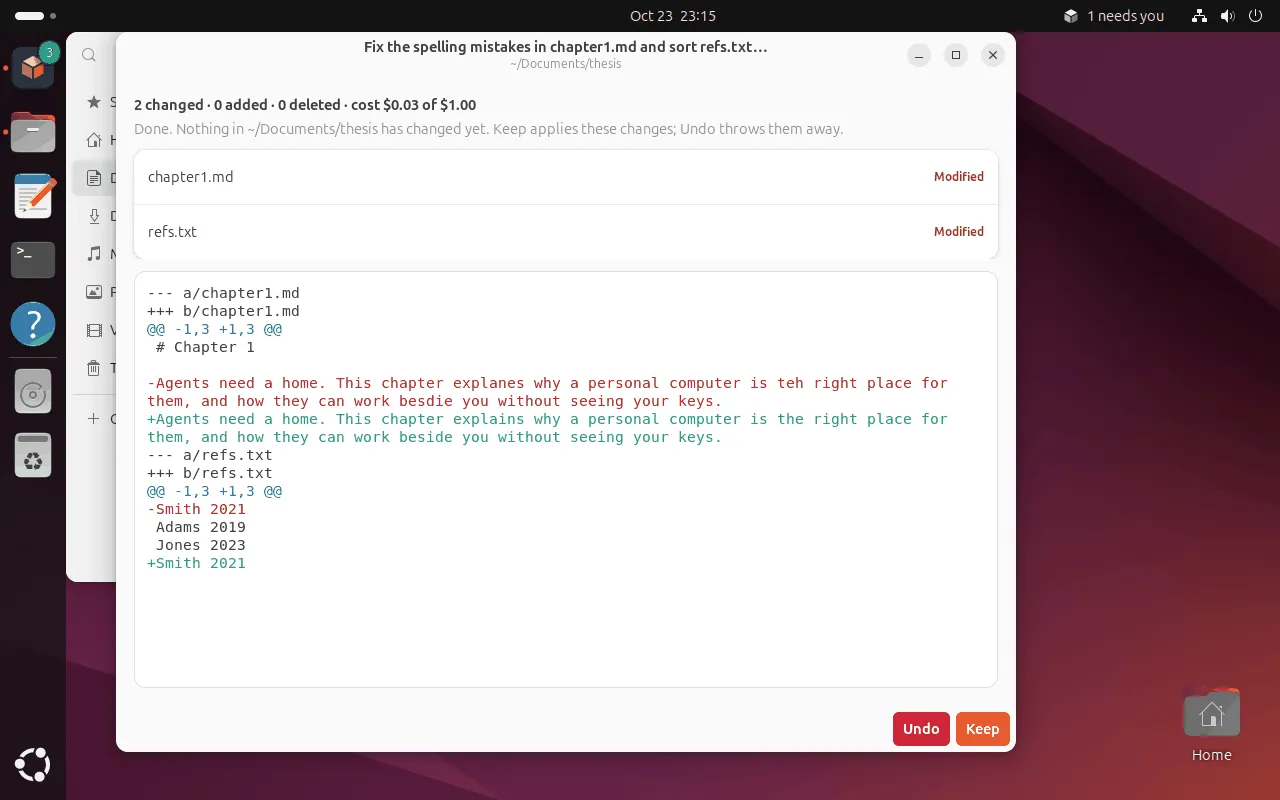
The review on GurtOS Personal, after a task fixed the spelling in a thesis chapter and sorted a reference list.
With the API
Section titled “With the API”The desktop uses these routes. Only the owner may call them: from the computer itself, or from a phone paired as the owner.
-
Start a task on the folder. Pass
folderinstead ofworkspace:curl -s 127.0.0.1:7700/api/tasks -H 'content-type: application/json' -d '{"title": "Tidy the receipts","prompt": "Rename each scanned receipt to YYYY-MM-DD-vendor.pdf and write missing.txt listing any without a total.","folder": "/home/you/Documents/receipts","budgetCents": 50}'The box links the folder as a workspace named
owner-receipts-<hash>, where the hash comes from the full path, so two folders with the same name never share a workspace. It copies the folder for this task and starts the agent on the copy. Edits you make to the folder while the task runs do not reach the task.To give one task several folders, send
foldersinstead, a list of up to 10. The task sees them side by side, each under its own name (notes, andnotes-2for a second folder with the same name). A folder inside another one in the list is refused. -
Wait for it to finish, then read what it changed:
curl -s 127.0.0.1:7700/api/tasks/<task id>/diffWith several folders, each path starts with its folder's name, and the answer has
roots, which maps each name to its real folder. The task'sreviewis nowpending. -
Keep applies the changes to your real folder:
curl -s -X POST 127.0.0.1:7700/api/tasks/<task id>/keep{"kept":[{"path":"2026-10-21-hardware-store.pdf","change":"added"},{"path":"scan-0042.pdf","change":"deleted"}]}Each file is written atomically. A file Keep replaces keeps its owner, group and mode. A new file takes the owner of the folder it lands in, with mode 0644 (0755 if executable). Before it replaces or deletes one of your files, the box saves a copy under
/var/lib/box/timemachine/<task id>/.If you changed any of the same files after the task started, Keep applies nothing, in any of the task's folders, and lists the files instead. The task's
reviewbecomesconflict:{"conflicts":["missing.txt"]}Resolve the conflict in your folder, or Undo the task and run it again.
-
Or Undo to discard the changes. Your folder never received them:
curl -s -X POST 127.0.0.1:7700/api/tasks/<task id>/undo -
Undo Keep puts back what a Keep changed, from the saved copies: kept files get their old content, owner and mode, and files Keep added are removed.
curl -s -X POST 127.0.0.1:7700/api/tasks/<task id>/unkeepIf you edited a kept file since, it changes nothing and returns
{"conflicts": [...]}.
Check it worked
Section titled “Check it worked”- The task's
reviewiskept,conflictorundone. - The action log has a
keepevent for each decision, withresultpending,kept,conflictorreverted, and the changes or conflicts. - After Keep, the folder shows the agent's changes. After Undo or Undo Keep, it is as it was.
Limits
Section titled “Limits”- Only a task in the
donestate can be kept. A failed task's changes can only be undone. - Keep works only on tasks that ran on your folders. Tasks on ordinary workspaces use Undo.
- The task's copy is a whole copy of the folder, made when it starts. That suits folders of documents. A very large folder takes time and disk space.
- Ask an Agent in Files offers one folder at a time. Several folders per task work through the API.
Related
Section titled “Related”GurtOS is open source under the Apache License 2.0.Source code on GitHub.