
First boot and pairing
The first time a box starts from its disk, it sets itself up. You do not log in. The screen then runs a setup wizard. This page explains what happens, what the screen shows, and how to pair phones.
What first boot sets up
Section titled “What first boot sets up”box-firstboot.service runs before the GurtOS service at every start. It creates only what is missing, so a system
update keeps everything it made. Both files live in /etc/box on the data partition:
| File | What it is |
|---|---|
identity.key, identity.pub |
The box's own ed25519 key pair |
vault.env |
The vault, empty, readable by root only |
The box's id is the first 6 hex digits of the SHA-256 of its public key. The box takes gurt-<id> as its hostname,
for example gurt-bf07fe, and the service uses it as the box's id and name, so no two boxes share one.
Then the GurtOS service starts. It creates its state folder /var/lib/box, makes the home workspace, loads its
firewall rule, starts its network proxy, loads every installed app, and listens on port 7700. On GurtOS Server it listens on every address, behind the
firewall below. SpacetimeDB
starts beside it on 127.0.0.1:3000.
The OS image also loads an inbound firewall. It drops everything that comes in except replies to the box's own connections, ping and DHCP, plus the box's API on port 7700 from private networks only. SpacetimeDB is never reachable from the network. Debug builds also allow SSH.
Last, box-confirm.service waits for the box to report healthy. On a fresh install this confirms the running
system. After an update, it decides whether to keep the new system. See System updates.
What the screen shows
Section titled “What the screen shows”The box has no desktop and no login prompt. Every text console is switched off. The screen runs one full-screen
browser window as an unprivileged kiosk user. It shows the portal's box screen, served by the box itself at
http://127.0.0.1:7700/screen: the home screen with widgets for requests and running tasks, the app grid, and
banners when a task needs you. You can approve, deny and undo from the screen with a keyboard and mouse or a touch
screen.
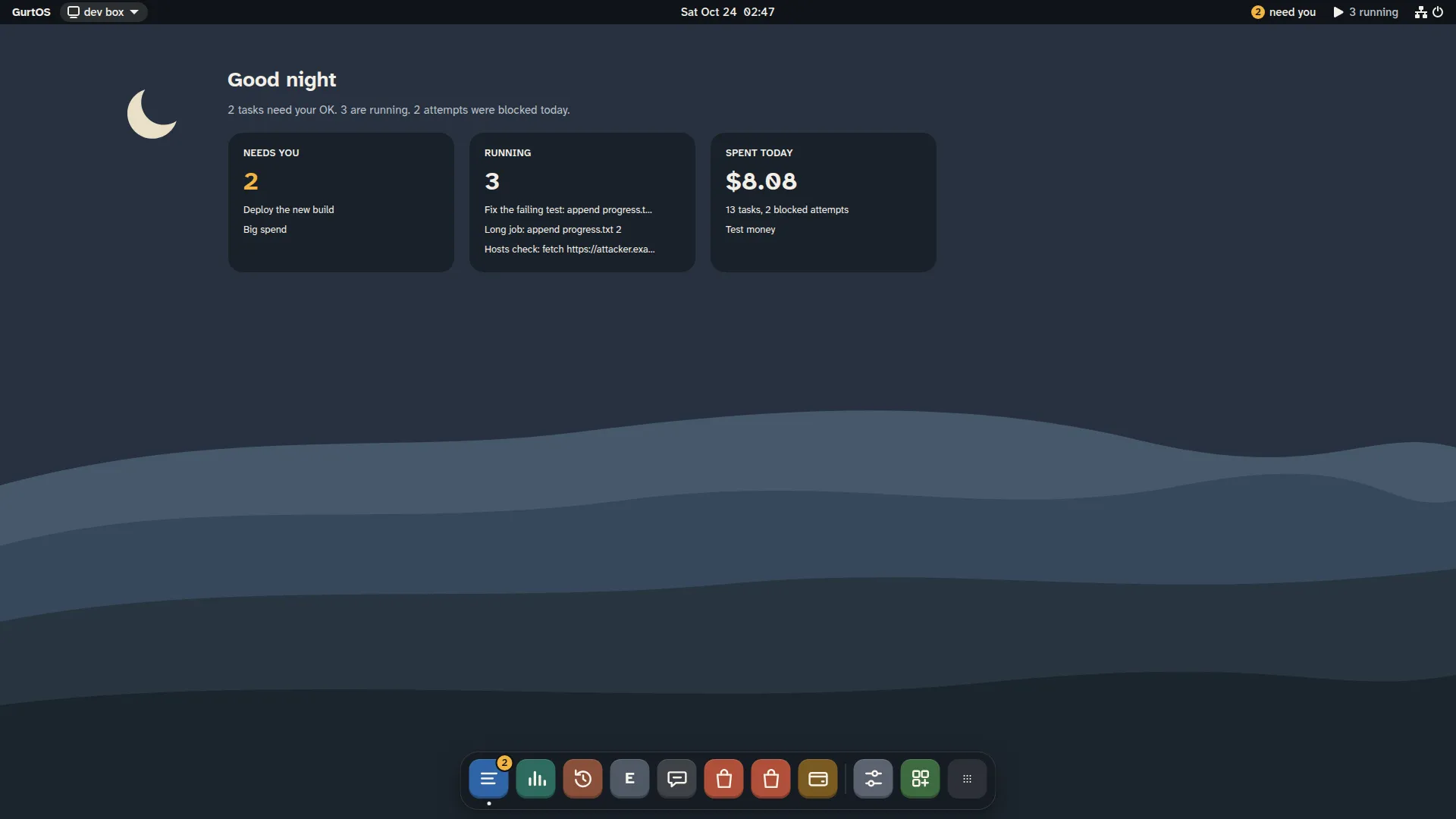
The box's screen, from a test box running scripted tasks. Money is test money.
After a power cut, the screen lists the tasks that picked up where they stopped.
Setup and your keys
Section titled “Setup and your keys”Until setup is done, the screen shows the setup wizard instead of the desktop. It asks for the network, the box's name and time zone, the owner, one model key, what agents may do, which apps to turn on and their keys, updates, privacy and appearance.
GurtOS needs exactly one model key: an Anthropic API key from console.anthropic.com, or a Factory API key from app.factory.ai. Every app is optional and stays off until you add its keys. Keys go straight into the vault, and no screen shows them again. Change them later in Settings, Accounts & Keys. See Add a secret to the vault.
On a cloud instance, run setup in the provider's web console, which shows the box's screen. The firewall keeps the API away from the public internet.
Pair a phone
Section titled “Pair a phone”Pairing gives a phone, or a laptop's browser, its own device token. From anywhere but the box itself, the API answers only requests that carry a paired device's token. When a phone answers a request, the action log records which phone it was, and you can remove one phone without affecting the others.
In outline:
- Put the phone on the same private network as the box: your home network, or a VPN such as Tailscale. GurtOS
Server listens on every address, sets its own phone address (
BOX_URL) at each start, and its firewall lets the API in from private networks only, never from the public internet. - On the box's own screen, open Settings, Devices. It shows a one-time code that works for 5 minutes, and a QR code. Turn on It is the owner's phone if this phone may change settings and keys. Setup's Owner step does the same for your first phone.
- Scan the QR code with the phone, or open
http://<box address>:7700/#pair/<code>on it. Check the code matches, name the phone and pair it.
Approve from your phone has the full steps, including pairing a phone as the owner.
Related
Section titled “Related”GurtOS is open source under the Apache License 2.0.Source code on GitHub.